Last updated: November 19, 2026
Key Takeaways
- You should check the issue in preview mode, test every link, and confirm the send path from draft to publish before the issue goes live.
- You send a newsletter issue safely by moving through a short handoff: draft review, preview check, link check, timing check, then final publish.
- You keep reading flow intact by checking the issue as one continuous path, not as separate blocks.
- Preview mode should show you how the issue behaves as a real message, not as a draft.
A rough handoff can ruin an AI tools newsletter issue even if the writing is strong. The fix is a send checklist that protects the reader’s flow: check links, preview the issue, confirm the publish timing, then send only after the last pass. The steps below settle where drafts go wrong and how to avoid send-time mistakes.
What should you check before you send the issue?
You should check the issue in preview mode, test every link, and confirm the send path from draft to publish before the issue goes live. That sounds basic, but the problems that break reading flow are usually small: one dead link, one odd embed, one missing headline style, or one platform-specific setting.
Picture this: you’ve finished the last edit and the issue looks good in your editor, but the reader will see something different in an email newsletter, in Substack, in Beehiiv, or in Mailchimp. The job is not just to publish—it’s to make the issue feel like one uninterrupted read. That means checking the issue as a subscriber would.
Use this final pass before every send:
- Open the issue in preview mode on desktop and mobile.
- Click every external link once, including product pages, docs, and social profiles.
- Check the first screen of the email for a clean opening, not a cluttered block of text.
- Confirm any images, embeds, or buttons load fast and point to the right place.
- Read the issue line by line for missing words, repeated sentences, or broken formatting.
- Verify the sender name, subject line, and preview text match the issue.
A link checker helps here, but it is not the whole job. It will catch a dead URL. It will not catch a link that works but sends the reader to the wrong tool page, the wrong pricing page, or a login wall. That is a different kind of break. Ugly.
The truth is, the reader rarely forgives a broken path in a tools newsletter. If a link stalls, the next paragraph loses force because the brain has to switch tasks.
How do you send a newsletter issue safely?
You send a newsletter issue safely by moving through a short handoff: draft review, preview check, link check, timing check, then final publish. This is the part that keeps the issue from turning into a pile of small errors at send time.
Picture this: your draft is sitting in Substack, Beehiiv, or Mailchimp, and everything looks done. The safe move is not “send now.” The safe move is a controlled handoff that treats the draft like a release, not a note to self.
Follow this sequence:
- Freeze the copy. Stop editing once the final review starts so the version in preview mode matches the version you intend to send.
- Open the full issue in preview mode. Read it top to bottom in the same layout the subscriber will see.
- Run a link check. Use a link checker on every URL, then manually click the most important ones.
- Check the first 150 to 200 words. The opening should feel smooth, with no stray heading, no missing line break, and no abrupt jump in tone.
- Confirm platform settings. In Substack, Beehiiv, or Mailchimp, verify the audience, schedule, and send window before you commit.
- Send to a test inbox first. A live inbox catches the layout shifts that browser preview often hides.
- Publish or schedule the issue. Once it looks right in the inbox, lock the send time and stop changing the draft.
A test inbox matters because the email client can change spacing, line height, and link styling. Gmail, Apple Mail, and Outlook do not all treat the same message the same way. Not even close.
Common handoff mistakes that break flow
The most common break is a link that opens to the wrong place. The cost is simple: the reader loses trust and stops clicking. The fix is to check the URL behind the text, not just the anchor text itself.
A second mistake is changing the draft after the preview check. That creates a mismatch between what you reviewed and what you sent. The fix is to freeze the copy once the final pass starts.
- Wrong link destination: sends readers away from the article’s rhythm.
- Late copy edits: create a mismatch between review and send.
- Platform mismatch: a setting in Mailchimp or Beehiiv can override what you think is live.
- Unreadable mobile spacing: makes short notes feel like a wall of text.
How do you keep the reading flow intact from top to bottom?
You keep reading flow intact by checking the issue as one continuous path, not as separate blocks. The reader should move from headline to intro to links without having to re-orient after each section.
Picture this: your AI tools newsletter has a strong opening, then a dense middle, then three links that all look fine in the editor. The problem may still be flow. A reader will feel a hiccup if one sentence is too long, one image pushes the next section too far down, or one list breaks the pace.
A practical flow check looks like this:
- Read the issue once without stopping.
- Mark every place where your eye slows down for the wrong reason.
- Check whether a heading promises one thing and the paragraph beneath it delivers another.
- Make sure each link has a clear reason to exist in that sentence.
- Keep the first screen light enough that the reader wants the second screen.
The best part? You do not need a perfect layout system to do this. You need a clean handoff. A reader should not feel the mechanics of the send. If they notice the mechanics, the issue has already lost some of its pull.
Here’s the catch: flow breaks often come from “helpful” additions at the end. One extra note, one long aside, one late product mention can flatten the rhythm of the whole issue.
What should preview mode show you that the editor won’t?
Preview mode should show you how the issue behaves as a real message, not as a draft. That includes spacing, link styling, button behavior, image placement, and whether the opening still reads cleanly outside the editor.
Picture this: the draft looks tidy in the platform, but the email version wraps a sentence in a strange place or shows a heading too close to the body text. Preview mode exposes those problems before they hit a subscriber’s inbox. It is the closest thing to a dry run.
Use preview mode to check these specific things:
- The subject line and preview text work together.
- The top of the issue does not start with dead space.
- Links are visible, not hidden in awkward punctuation.
- Images load fast enough to fit the pace of the piece.
- Mobile view does not turn short bullets into long scrolling blocks.
- Buttons, if you use them, do not interrupt the sentence around them.
Some platforms treat preview differently. Substack can make the issue feel more article-like. Beehiiv often pushes a cleaner newsletter frame. Mailchimp can expose template quirks faster because the structure is more rigid. That means the same draft can read fine in one place and awkward in another.
The honest trade-off is this: a cleaner template can reduce layout surprises, but a rigid one can make the issue feel less like a smooth editorial page. Pick the platform that matches your send habit, then learn its preview quirks instead of fighting them.
Which send-time checks matter most on Substack, Beehiiv, and Mailchimp?
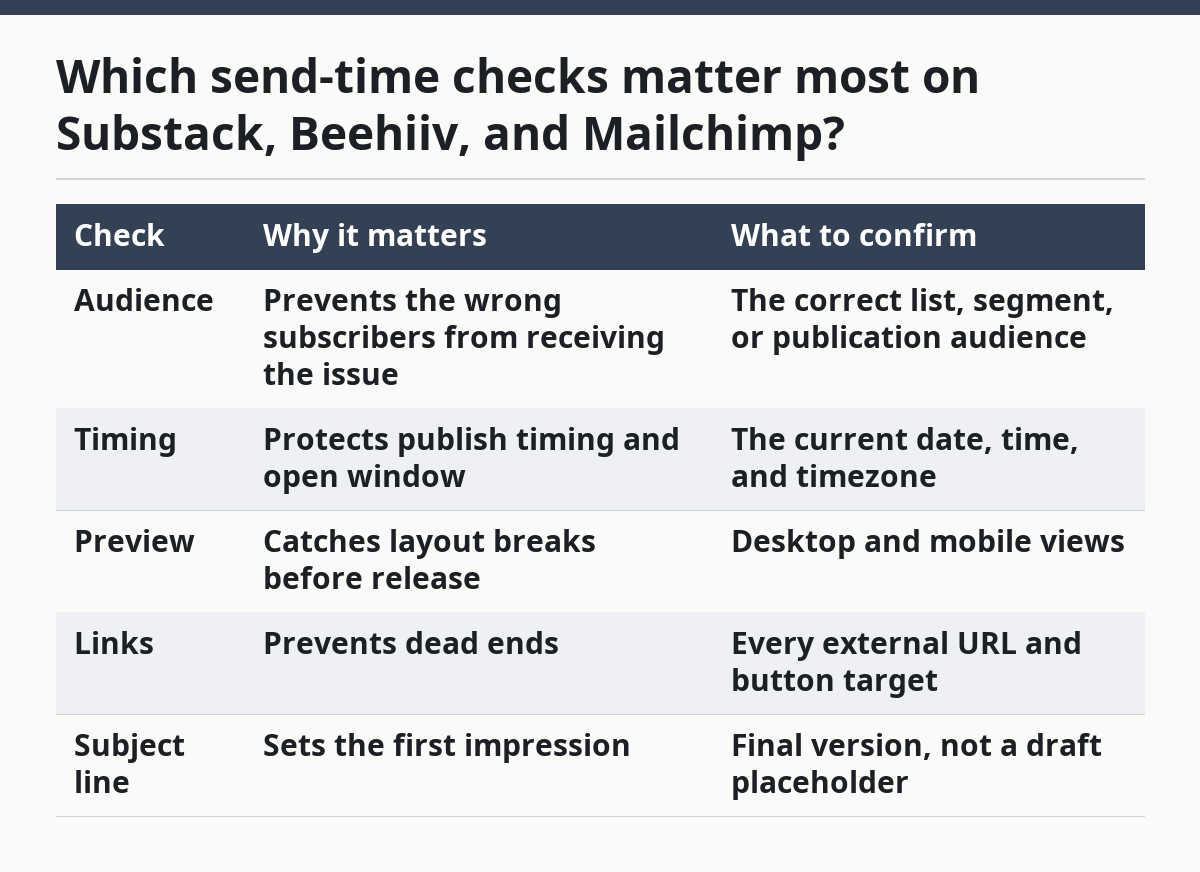
The send-time checks that matter most are audience, timing, preview, and link state, because those are the controls most likely to send the wrong version to the wrong place. The platform changes, but the failure points stay the same.
Picture this: you are in the last screen before publish. On Substack, Beehiiv, or Mailchimp, the issue may look ready, but one wrong setting can still send it to the wrong segment or at the wrong time. That kind of mistake breaks trust fast.
Check these before you hit send:
| Check | Why it matters | What to confirm |
|---|---|---|
| Audience | Prevents the wrong subscribers from receiving the issue | The correct list, segment, or publication audience |
| Timing | Protects publish timing and open window | The current date, time, and timezone |
| Preview | Catches layout breaks before release | Desktop and mobile views |
| Links | Prevents dead ends | Every external URL and button target |
| Subject line | Sets the first impression | Final version, not a draft placeholder |
If you schedule ahead, check the timezone twice. A 9:00 a.m. send in one timezone can land at the wrong hour for your audience if the platform defaults somewhere else. That is a small setting with a big effect.
The best move is to treat the send screen like a control panel, not a formality. Big mistake to rush it.
How do you fix broken links without slowing the issue down?
You fix broken links without slowing the issue down by checking links before final polish, then using a short rescue process for any bad URL you catch late. A broken link is one of the fastest ways to interrupt the reader’s flow, so the repair needs to be direct.
Picture this: one tool mention points to a dead product page, and the reader hits a 404 page after two clean paragraphs. The issue stops feeling curated and starts feeling careless. One bad click can damage the whole run of an otherwise useful send.
Use this rescue process:
- Paste every URL into a link checker before the final send.
- Click the most important links by hand, especially product links and signup pages.
- Replace any dead URL with the correct page, not a homepage.
- If the destination is unstable, remove the link until you can verify it.
- Re-run the checker after the fix so you do not leave a second error behind.
A link checker is useful because it saves time on the obvious failures. It is not enough on its own because a live link can still be wrong, slow, or badly placed in the sentence.
The truth is, readers of an AI tools newsletter usually want to jump from the issue to the tool page fast. If the bridge is broken, the whole issue feels less credible.
What should the final QA before send actually include?
The final QA before send should include one full read, one link pass, one platform check, and one test inbox review. That is the minimum that keeps the issue from going live with a tiny but visible mistake.
Picture this: you are ready to hit publish, and every part of the issue looks familiar because you have seen it too many times. That is exactly when you need a final QA pass. Familiarity hides errors. A fresh read catches them.
Use this last checklist:
- Read the issue aloud once.
- Confirm the opening still sounds natural and not stitched together.
- Check that every heading earns the paragraph under it.
- Verify that every link still points where you think it points.
- Open the issue in at least one test inbox.
- Recheck publish timing after any last-minute edit.
- Stop if the final version no longer matches the preview.
The point of final QA is not to make the issue perfect. It is to make the send clean enough that the reader never notices the machinery behind it. That is the job.
FAQ
How do you send a newsletter issue safely?
You send it safely by freezing the draft, checking preview mode, running a link checker, and confirming the send settings before publish. A test inbox is the last useful step because it shows how the issue behaves in a real email client, not just in the editor.
What should you check before publishing a newsletter issue?
You should check the opening, the links, the subject line, the preview text, and the publish timing. The issue should also be read once from top to bottom so you can catch spacing problems, broken formatting, or a section that slows the reader down for no reason.
How do you avoid broken links in a newsletter?
You avoid broken links by checking every URL before send and clicking the important ones by hand. A link checker catches dead pages, but manual review catches the wrong destination, the wrong product page, or a link that works but sends the reader somewhere useless.
For broader editorial flow, the hub guide to Newsletter structure and editorial strategy — The Complete Guide covers the planning side that sits before delivery.
Drafted with AI; not yet reviewed by a person.